






Member-to-Member Transfers

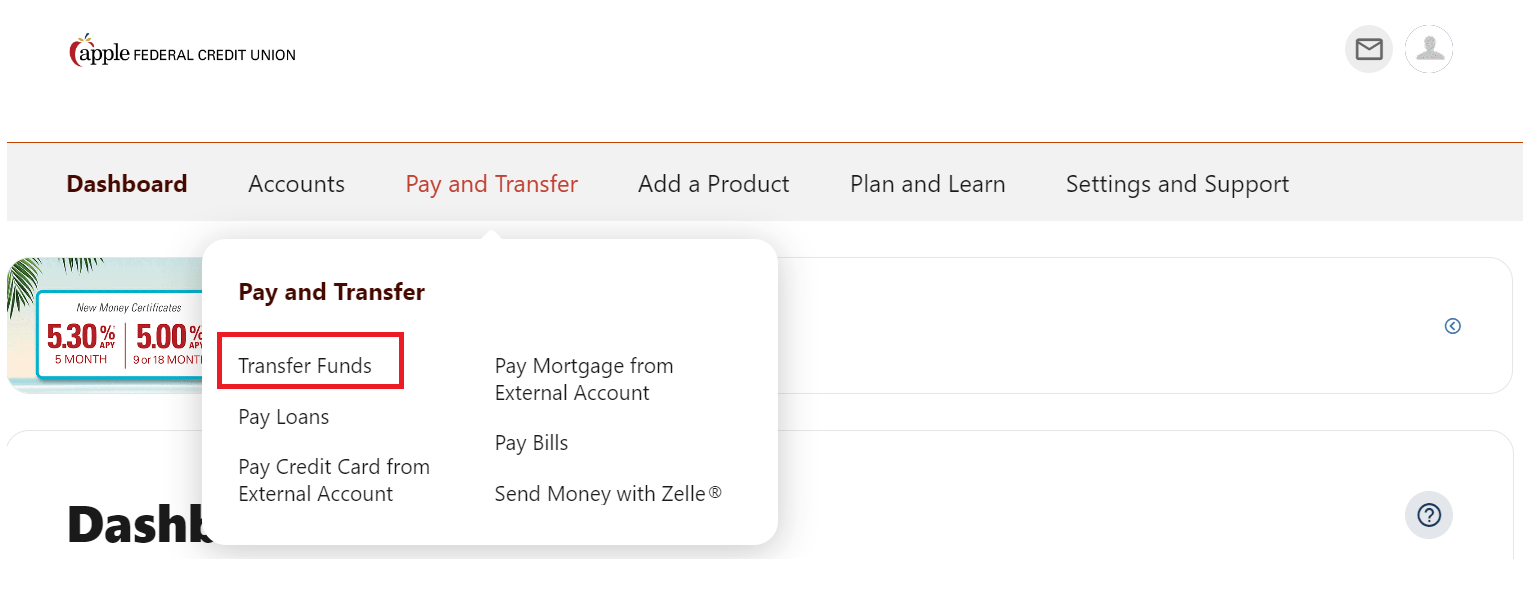
1. Locate the Pay and Transfer tab and select Transfer Funds.
2. From the dropdown menus (pictured below), select the following:
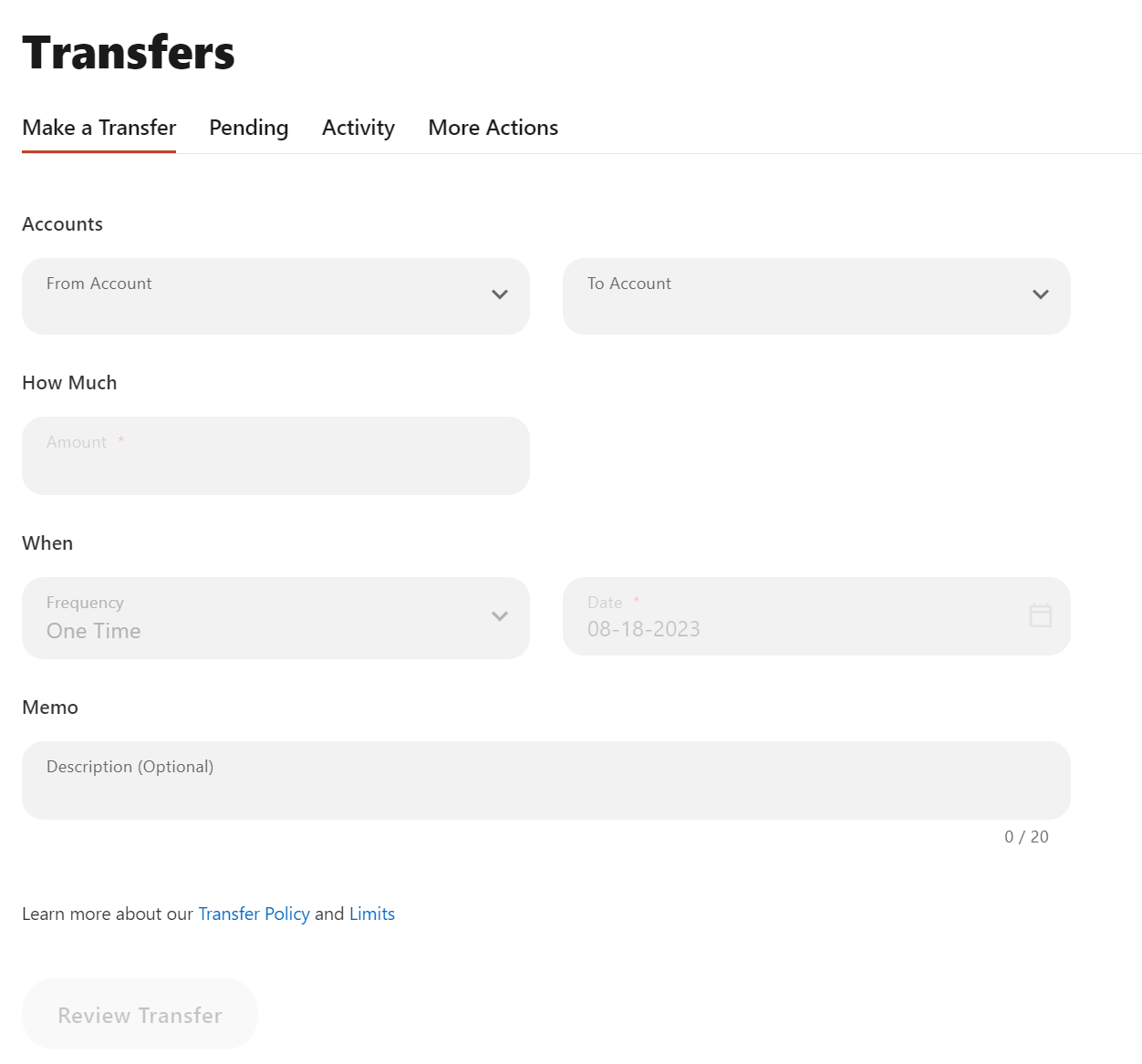
- From Account – Choose the desired account from which you want to transfer funds from.
- To Account – Select Add an Account at the bottom of the drop down to locate Send money to another Apple FCU member.
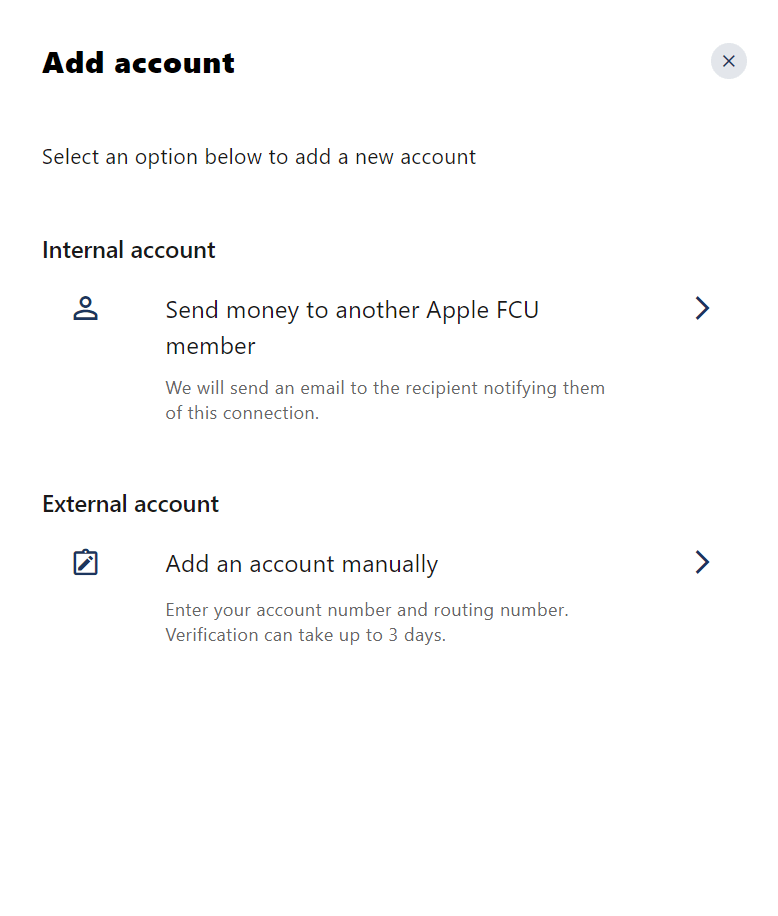
3. Enter member’s last name.
4. Select Verification method under Account Details to select Account
5. Enter the member’s account type (Share account or Loan account), member number and the share ID.
-
-
- Enter the appropriate share ID number. For example, Regular Savings – 0000, Free A+ Checking – 0017, Money Market – 0015, Student Checking – 0016)
- Optional: Save the account for future use and give the account a nickname.
- Select Return to Make a Transfer.
- Enter the mount you’d like to transfer under How Much.
- Verify or change the frequency of the transfer under When.
- Click Review Transfer to confirm details.
- Select Submit Transfer to complete transfer.
-
NOTE: The transfer will occur in real-time; the other member will have immediate access to the funds from their account.